
UMONEY / UMONEY APP GUIDE
UMoney app.
The practical guide.
A straightforward tour of the app screens, the example exchange calculation and the details to check before getting started.
Updated 27 October 2026
What can you find in the UMoney app?
The UMoney screens featured on this website bring together USDT exchange, INR deposit orders, quota information, withdrawal controls and account tools. This guide explains where those features appear so you can get familiar with the layout before opening the platform.
This is a promotional guide based on the app screens and website details available to us. Rates and availability can change. Registration links contain a referral code; you can read more about this website.
Start with the Home dashboard
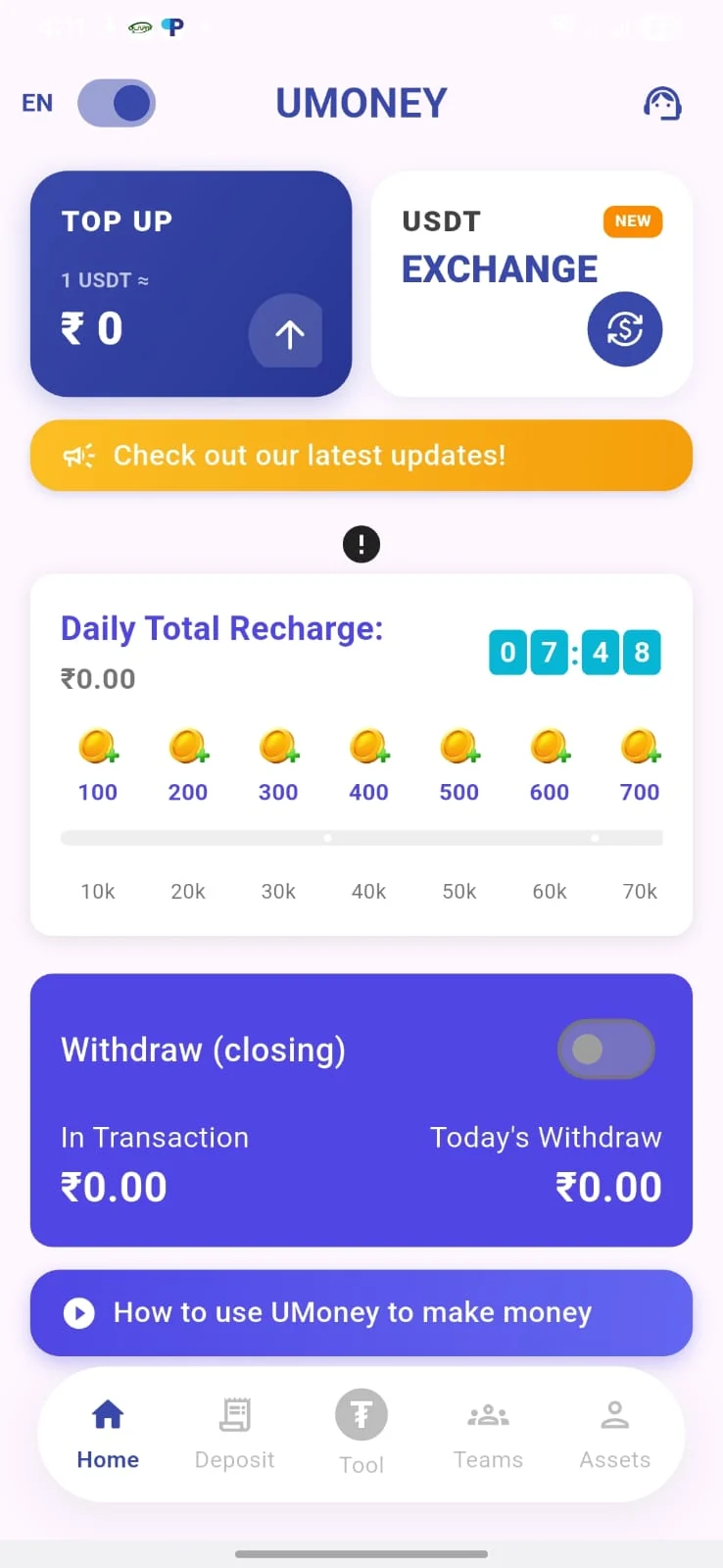
The Home screen shows top-up and USDT exchange entries near the top. Below them, the screenshot includes a daily recharge section and withdrawal information. These are app controls: the website itself does not access your balance or create a transaction.
Use the interactive app preview to view the Home screen, then switch to Deposit Center or Assets & support. The screenshots are examples of the interface, rather than a live view of your account.
USDT to INR calculator: example rate and formula
The USDT to INR calculator uses the example rate shown on this website: ₹109 for 1 USDT. Enter a USDT amount or select a preset, and the calculator multiplies that amount by the example rate.
At the default ₹109 example rate, 100 USDT gives an estimate of ₹10,900. This calculation does not include fees or rewards and does not retrieve market data. Check the current quote and final amount in the app before deciding whether to proceed.
The formula: USDT amount × example INR rate = estimated INR value.
| USDT amount | Estimated INR |
|---|---|
| 50 USDT | ₹5,450.00 |
| 100 USDT | ₹10,900.00 |
| 500 USDT | ₹54,500.00 |
The estimate is useful for comparing amounts at the same example rate. It is not a payment quote or a promise that an exchange is available. Confirm the rate, any charges and the actual amount inside the platform.
Find INR deposit orders
The Deposit Center is the place to look for available INR orders, displayed bonuses and quota information. When reviewing an order, read the amount and its conditions before following any instructions.
Order availability and the values shown can change. A screenshot on this website is useful for finding your way around; it does not confirm that a particular order is available now.
Where to look in the app
| Screen | Tools shown |
|---|---|
| Home | USDT exchange, top-up and withdrawal controls |
| Deposit Center | INR orders, displayed bonuses and quota totals |
| Assets | Displayed earnings, history, account settings and support |
What does the displayed 3% reward mean?
The original website details include a displayed 3% quota reward. The applicable reward depends on the app’s current conditions and eligibility. It is not a guaranteed return, and the calculator does not add it to your INR estimate.
Read the conditions for the specific order inside UMoney. Check whether a percentage is a reward, bonus or another value, and how it applies to your activity.
Keep account details in one place
The Assets screen shown in the preview includes quota and earnings information, history, support and account settings. After using the app, this is the area to explore for the records and tools available to your account.
How to get started
- Open the UMoney registration link from this website.
- Follow the account setup instructions on the linked platform.
- Review the available features, current rate and relevant order terms.
- Use the app’s history and support tools to follow up on your activity.
Want to see the interface first?
Start with the app screenshots or return to the common questions. For the latest platform details, use the app and its available support options.